How to Use “Keep Open” Mode on LifeSmart Digital Door Lock
I recently needed to figure out how to keep my LifeSmart digital door lock temporarily unlocked from the outside.
This is useful when people are going in and out frequently, for example when family members are visiting, workers are doing something at the house, or you do not want to keep unlocking the door repeatedly for a short period of time.
The feature exists, but I could not find it clearly documented online, so I’m writing this down in case it helps someone else.
How to enable Keep Open mode
To enable Keep Open mode from the keypad:
7#
After entering 7#, the lock should indicate that Keep Open mode will be enabled after the next unlock.
Then unlock the door normally.
For example, you can enter your password, use your fingerprint, or use another supported unlock method. After the unlock succeeds, the door should remain open/unlocked from outside.
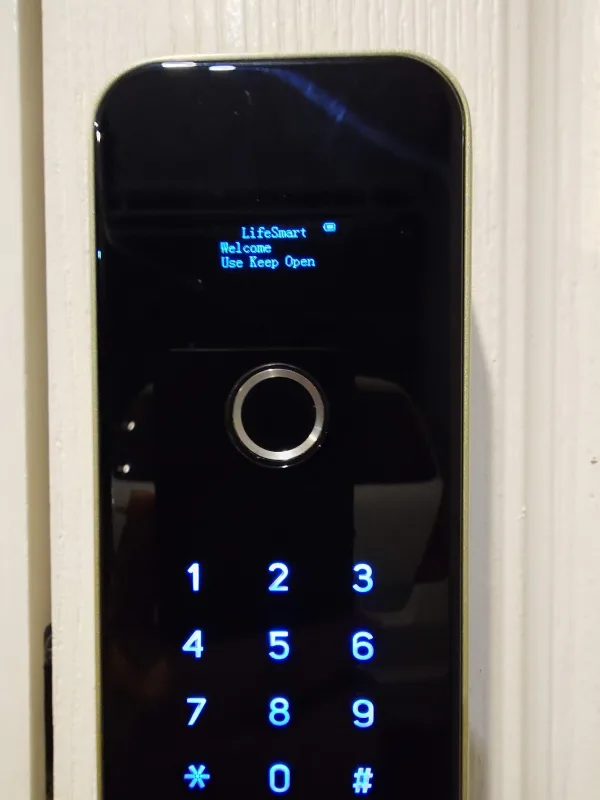
How to disable Keep Open mode
To disable Keep Open mode and return the lock to normal behavior:
8#
No password or unlock action is required for disabling it.
After entering 8#, the lock should go back to normal behavior and require password, fingerprint, card, or another configured unlock method again.
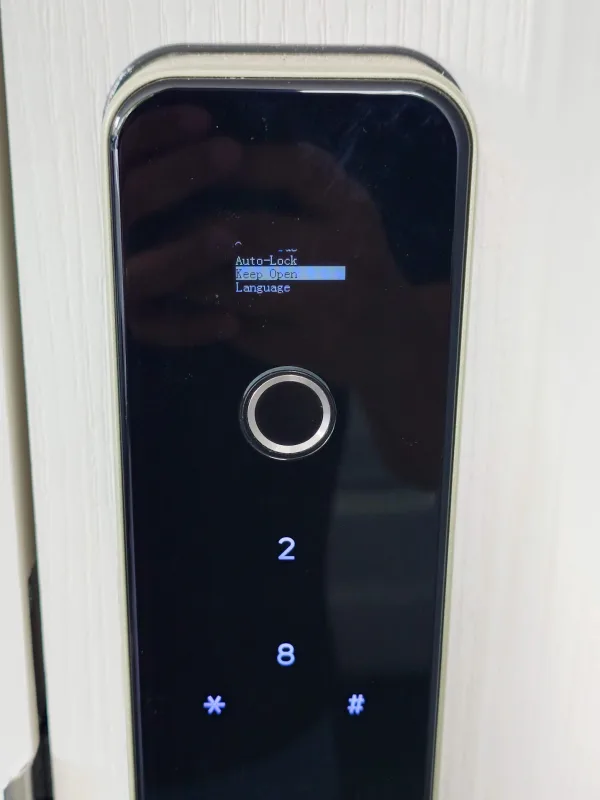
Important: the feature must be enabled in the admin area
There is also an admin setting for this mode.
If 7# does not work, check the lock’s admin area or LifeSmart app/admin configuration first. The Keep Open mode may be disabled there.
In my case, the keypad shortcut only works when this feature is allowed in the admin settings.
Quick summary
| Action | Keypad command | What happens |
|---|---|---|
| Enable Keep Open mode | 7# | The next successful unlock will keep the lock open |
| Disable Keep Open mode | 8# | Keep Open mode is disabled immediately, no password needed |
Security note
Only use Keep Open mode when you really need it.
Because the lock can be opened from outside while this mode is active, it is easy to forget that the door is no longer protected by the usual authentication methods.
My suggestion is to use it only for short periods, and always disable it again with:
8#
